Coworkers hand off to each other
One AI coworker can pass work to another and bring the result back to the group.
KelvinAI is an AI assistant for assigning tasks and getting work done from your computer or phone. Bring AI coworkers into group chats to collaborate and deliver results — you make the consequential decisions.
Free client downloadModel usage billed by usemacOS · Windows · Android · iPhone web app

Work groups
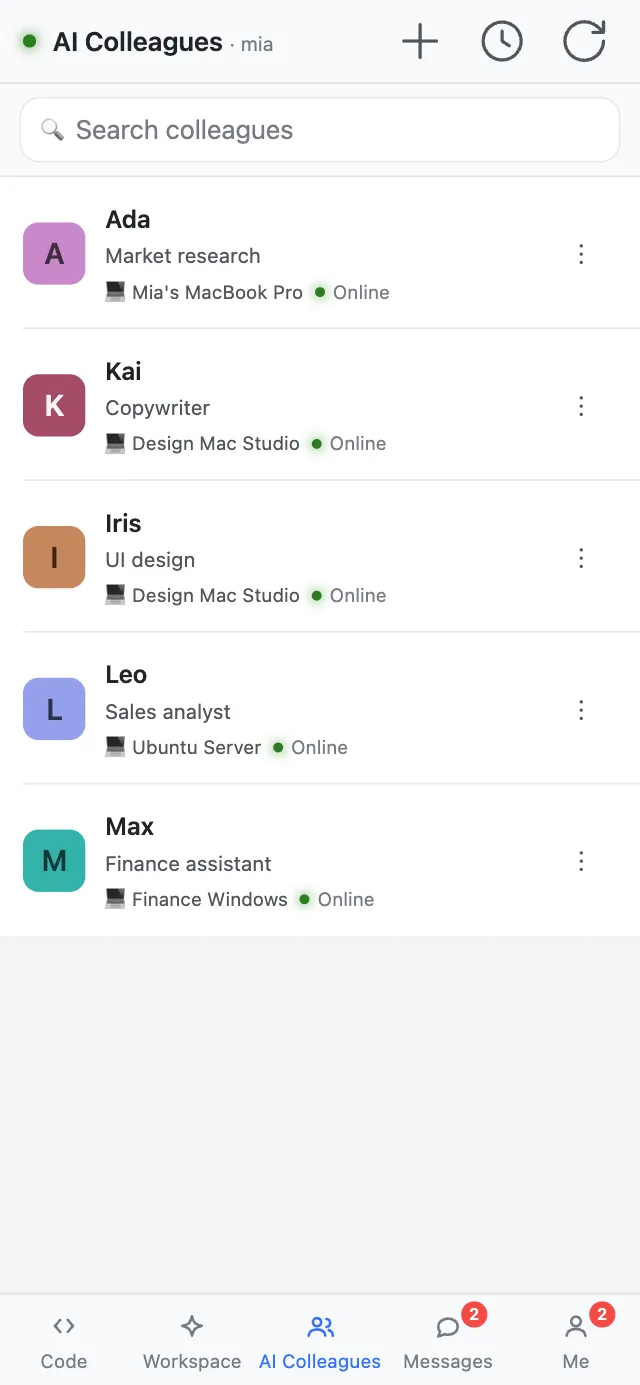
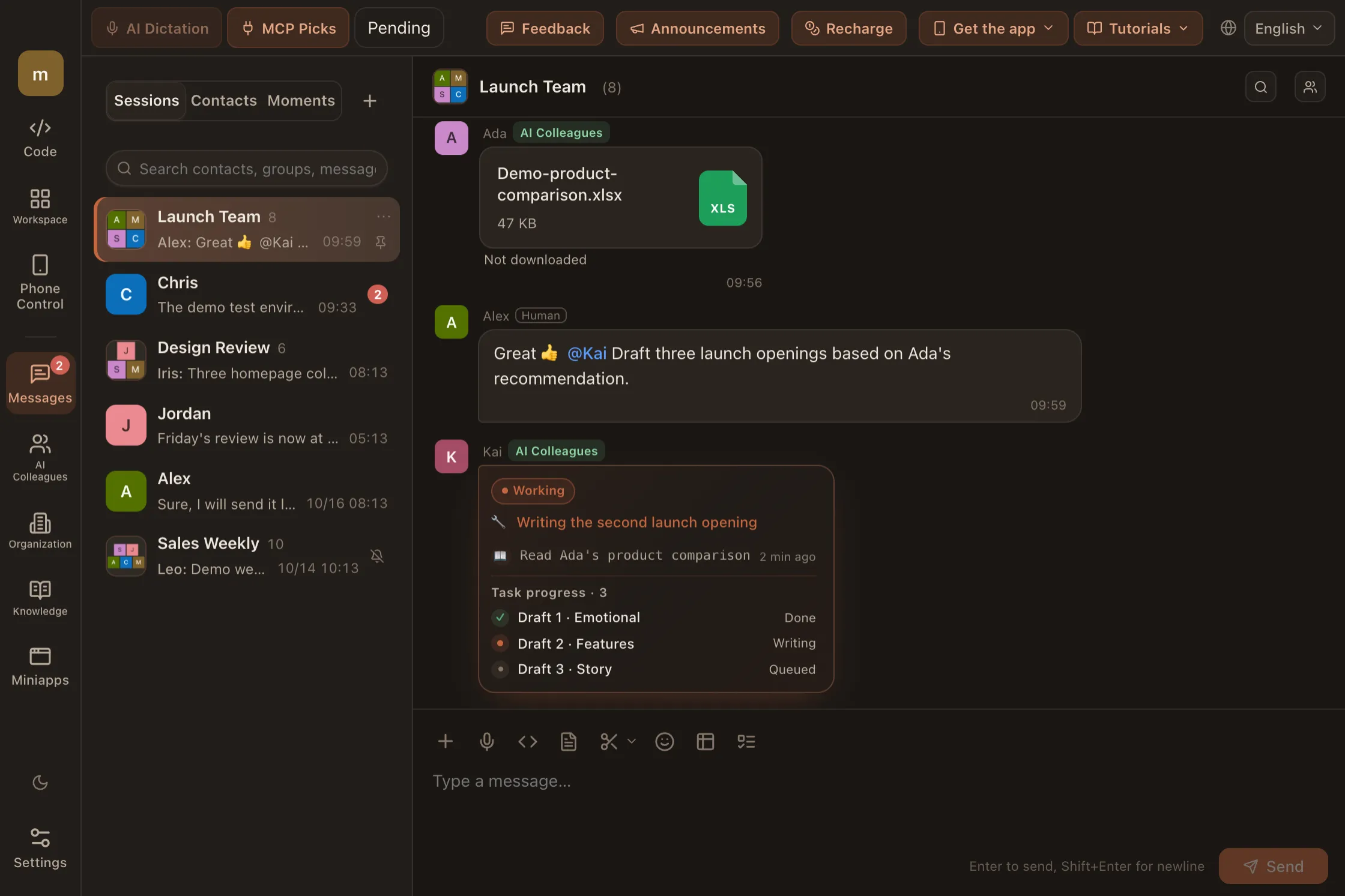
AI coworkers have names, roles, and their own tools. They sit in the same group as your human teammates, so handoffs, deliveries, and follow-ups all happen where you can see them.
Just like calling on a teammate: say what you want and who it is for.
A live task card lists what it opened, read, and wrote, and how long it took.
Spreadsheets, documents, code, and files land in the group — not just a paragraph of talk.
A person confirms the result, then @s the next coworker to pick it up. Progress stays visible.
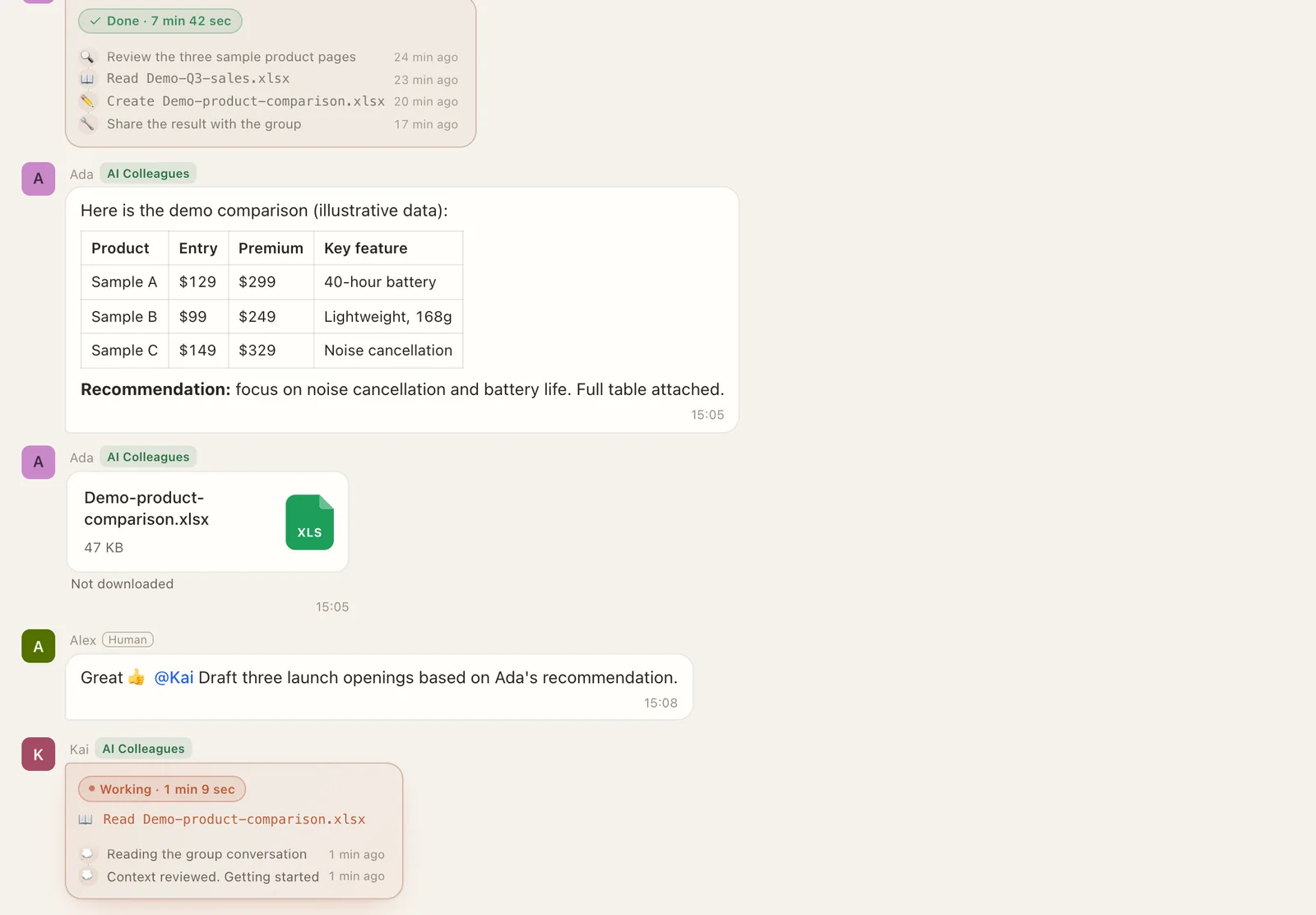
One AI coworker can pass work to another and bring the result back to the group.
Big jobs are split across a team of sub-agents running in the background, and you are notified when they finish.
Stickers, voice messages, locations, merged forwards, Moments — and AI conversations can be forwarded into groups too.
Group got busy? Summarize everything you missed in a few lines, in one tap.
Permissions decide who can @ which coworker. A coworker runs on its host computer, and that computer needs to be online.
Voice calls
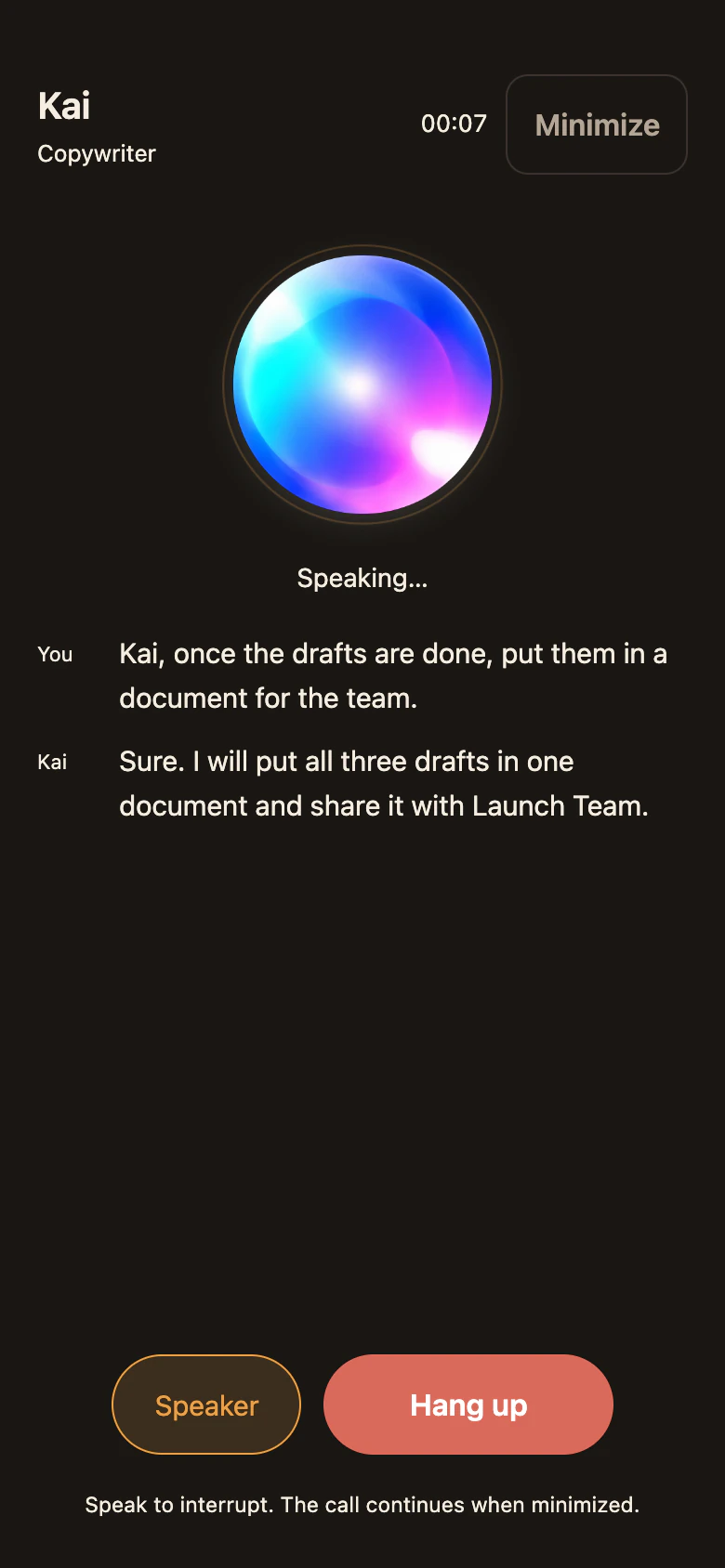
You are talking to the same AI coworker from your group. Say what you need; it checks files, digs through records, edits code, and tells you what it found.
Stay on the call while you go back to read messages and browse files.
What was said stays on record; switch between speaker and earpiece on your phone anytime.
Hold a shortcut and speak; the cleaned-up text is pasted into whatever app you are using. Mac / Windows.
In-app voice, no phone number involved; the coworker's host computer must be online; billed by call time. It can also phone people for you: mainland China numbers only, after you tap Call.
Hands-on
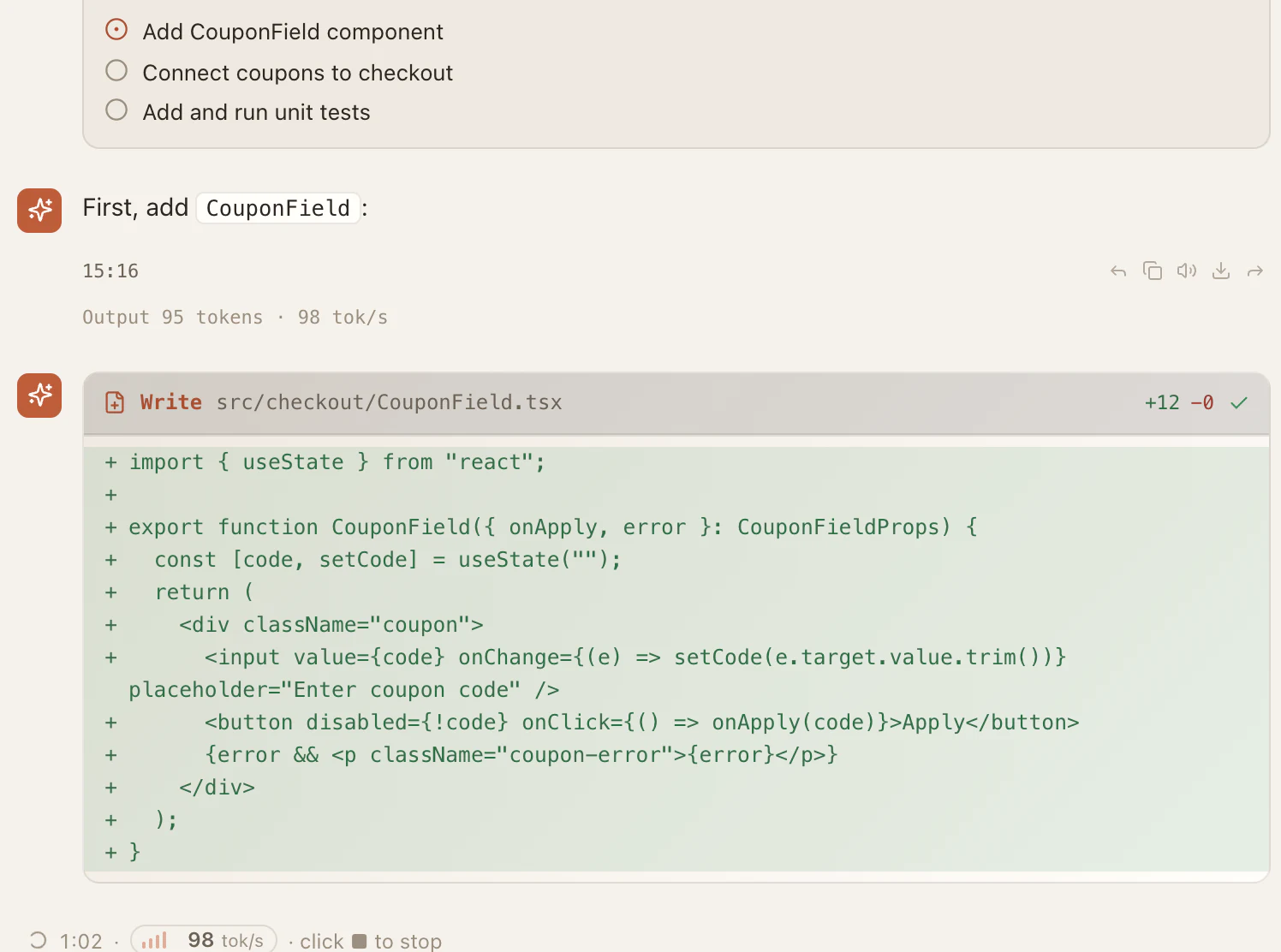
Every change is laid out as a diff, and it hands off only after the tests pass.
Say one sentence; the AI reads the screen, taps, types, and swipes until the job is done. Every step is visible, and you can stop it anytime.
Android only · computer must be online · About Kira →
The KK app interface is currently available in Chinese only.
Reads pages, fills forms, and pulls data in your own Chrome / Edge, and can run resident scripts. Off by default; connects with a pairing code.
Five-step setup →Once authorized, it clicks, types, and reads the screen; it asks before key actions, and one click stops it.
Install ready-made skills from the store, connect your systems over MCP, and let coworkers start work on schedule.
Key actions such as placing orders or paying always need your confirmation; the extension acts with your real signed-in identity.
Anywhere
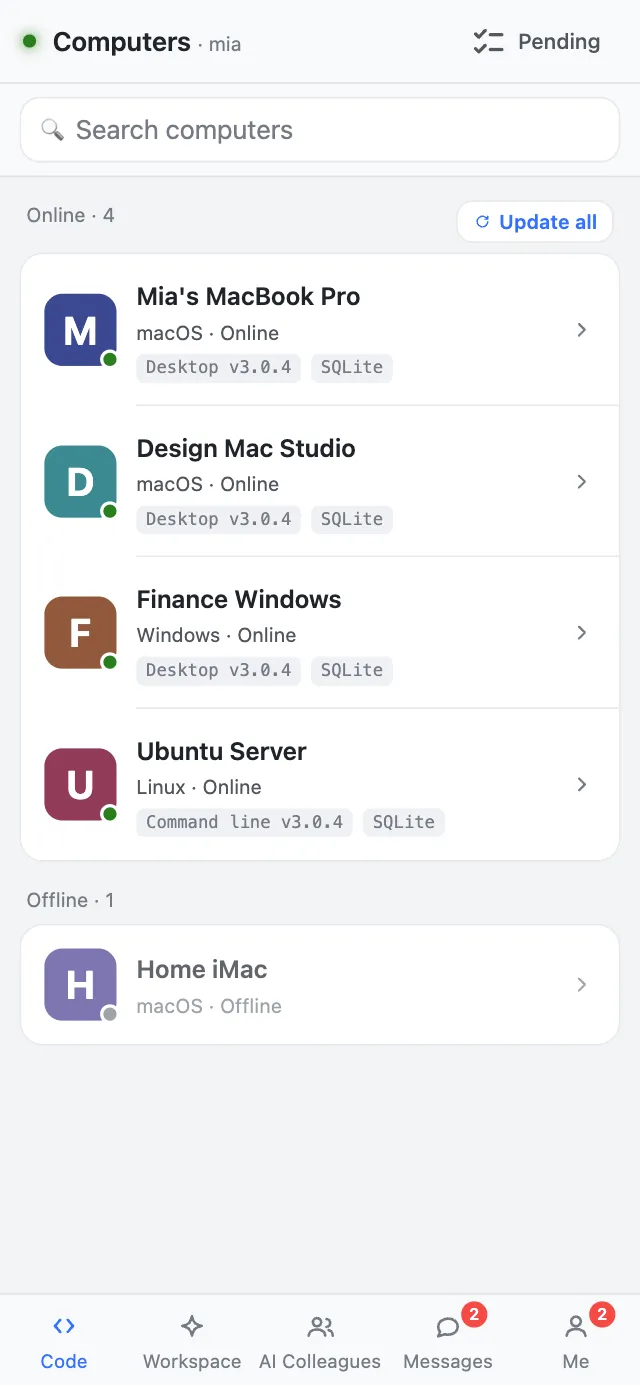
Start on your computer, keep managing from your phone. One account connects all your computers, so you can see at a glance which machine runs each task and holds each file.
Check progress, add instructions, and approve permissions without going back to your desk.
Switch to another online computer, and tasks and files run there.
Talk to it in WeChat, Telegram, Feishu, or DingTalk; it reaches out to you too.
One line, kelvinai serve, keeps it resident; assign work from your phone anytime.
Long-term memory, scheduled reminders, proactive reports.
Move one — with its conversations, skills, and memory — to another computer, or hand it to someone else.
Your phone assigns and reviews; the computer doing the work must be running KelvinAI and stay online.
Team office
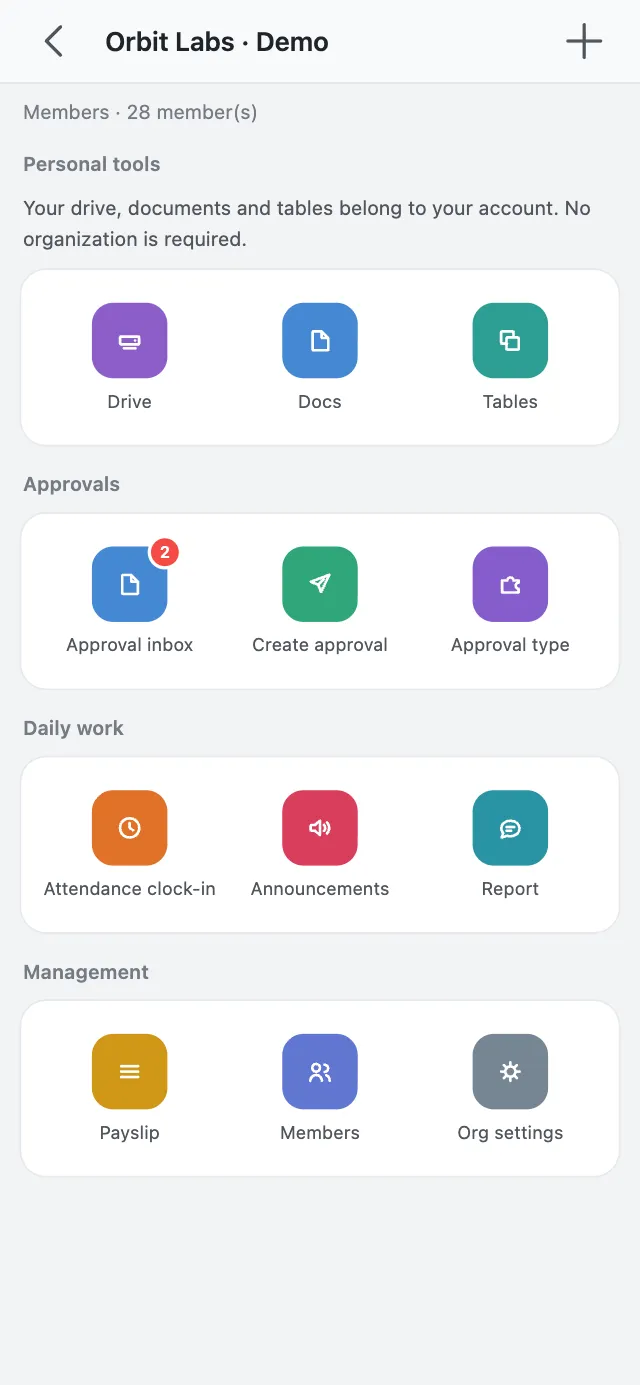
OA, cloud tables, cloud docs, cloud drive, and a knowledge base live in the same account. AI coworkers work here, and their results land here.
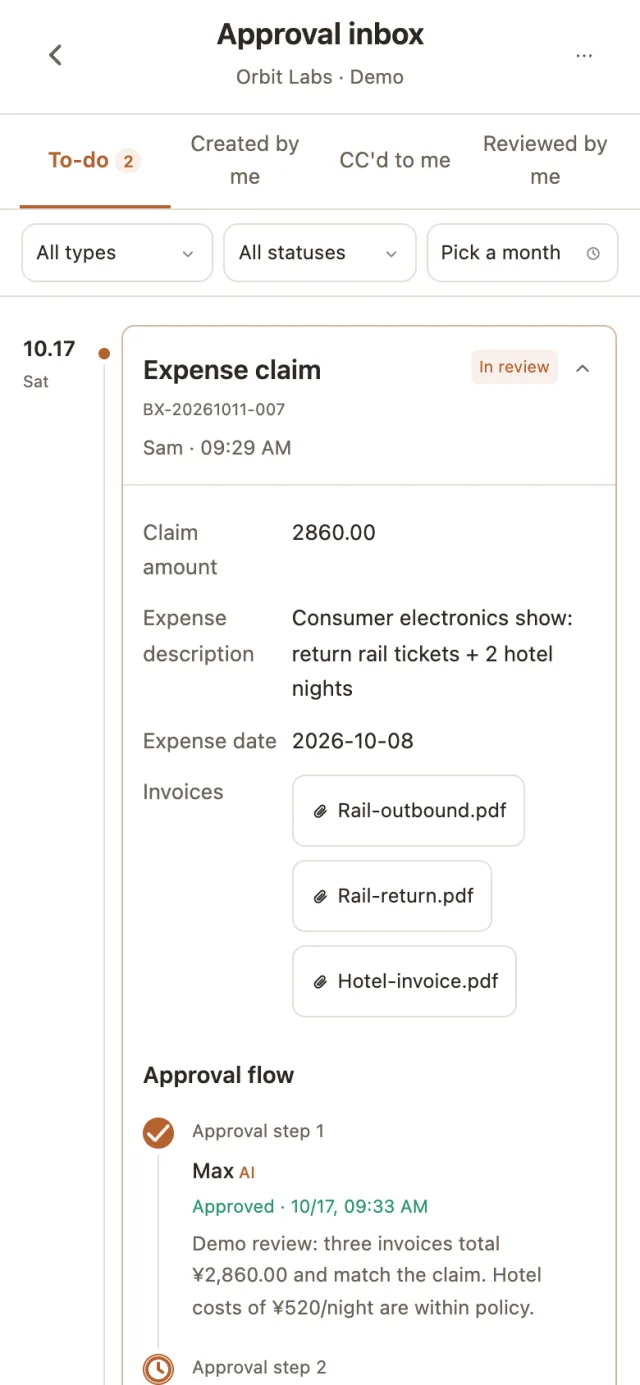
Leave, expenses, attendance, reports, announcements, and payslips all sit on the workbench. A flow can have an AI coworker check receipts and amounts and write its notes before it goes to the manager.
Org rules and permissions still apply — it never skips a step or approves on your behalf.
Where the work lands
When a coworker finishes the job in your group, the tables, documents, and files land in your own cloud space. Your team keeps editing them — no copying files around, and no second Feishu or Tencent Docs integration to wire up.
Your coworker reads the sheet and writes results back: new rows, edited cells, a calculated column.
Findings organized into a document your team keeps editing.
Files and exports filed automatically, so the group always references one copy.
Documents, tables, and drive are built for team collaboration. Write actions go through the tool permission and confirmation flow, and every change shows up in the activity log.
Sample data, not real results (CNY 10k)
01Week 4 led on revenue; the High-tech Park store has led three weeks running.
02East Side missed target two weeks in a row — suggest a store visit.
03Margin waits for cost data; the conclusion stays as is.
The group works from one copy — nothing to send around.
Illustration · sample data
Attach PDF, Word, Excel, and PPT files; coworkers cite your material when they answer.
A local knowledge base needs to be re-attached after a coworker moves.Have the AI build a small app; once approved, open it on desktop and phone and share it to groups.
Publishing requires admin review.Employees receive payslips, and the AI helps them look up and explain their own details.
Requires joining a company org; permissions follow the org's settings.Create sub-accounts for members that share credits, each with its own limit.
Sub-accounts cannot top up.Group files and the cloud drive follow their own retention rules.
Only attachments in File Transfer expire after 72 hours; it is meant for temporary handoffs.Enterprise integration
If a system exposes MCP or an API, your AI coworker can gain a new skill: read the data, run the process, write the result back. For internal-only systems, the connector can run on your side.
Reads stay open; writes go through approval and an operation log. When an interface fails, we report the error — we never invent data. Custom integrations are scoped and scheduled per project. We do not promise “connect every system out of the box.”
Explore enterprise accessfin.margin_momFinance system · income statement fieldcrm.account.tierCRM · account tier fieldflow.purchase.submitProcurement · approval workflowPhrases like “last month's gross margin” resolve to the exact field and workflow in your system.
Create
Images, video, audio, and documents — made in conversation, with finished files landing straight in your workspace.
Text-to-image and image-to-image, blending up to 10 references, and splitting designs into transparent layers.
Seedream and other image models
Generate from one sentence or from first and last frames, with reference images, video, and audio.
Seedance 2.0 / 2.5, MiniMax · up to 30 s
Multi-voice dubbing, narration in a chosen voice, music, and sound effects — and recordings can be transcribed.
Audiobooks · podcasts · short-video soundtracks
Give it a video and ask what happens in it and who said what.
Code-driven animations and data animations with captions, voice-over, and transitions.
Remotion and HyperFrames skills
PDF, Word, Excel, PPT — or a shareable report web page in one click.
All billed by usage; available tiers are set by the server. Reference material with real faces is restricted.
Models
Cheap models for chores, strong ones for hard problems. Each conversation and each coworker remembers its own model.
View public pricingBrand names do not imply every model is always available. See your account for the current catalog and rates.
Download
Desktop, phone, command line, browser — pick your platform to start.
Android upgrade notice: KelvinAI for Android version 3.0.3 and later uses a fixed release signing certificate. Old test-signed builds cannot be updated in place. Back up important data and confirm your login details before uninstalling and reinstalling. Uninstalling removes local data; only data already synchronized to your account remains in the cloud. Future builds using this release certificate support in-place upgrades.
The macOS and Windows installers are not signed yet; on first launch, choose “Open Anyway” when the system asks. Android needs installs from unknown sources allowed.
The extension is not in the Web Store. Install it from the desktop app — Browser panel → "Install / update extension" — that is the only copy that refreshes when you upgrade the app. You can also unzip this download yourself → chrome://extensions → Developer mode → Load unpacked (then you reinstall by hand each time). Full 5 steps →
Open KelvinAI desktop → the Browser panel on the right → press Install / update extension. It drops the extension into a fixed folder and shows you the path.
★ Prefer this over unzipping the download yourself: only the extension in that folder gets refreshed when you upgrade the desktop app — anywhere else, you reinstall by hand every time.
chrome://extensions in your browserTurn on Developer mode (top right; on Edge it is bottom left).
"KelvinAI 助手" appears in the list, and a new icon appears in the toolbar — if you don't see it, click the puzzle-piece button and pin it.
Same Browser panel — it is off by default. Turning it on shows a 6-digit pairing code: click the KelvinAI toolbar icon, type the code, and wait for "Connected".
Back to chrome://extensions → find the KelvinAI 助手 card → click Details → turn on Allow User Scripts.
★ That switch belongs to the browser, and its name is fixed — we can't rename it. The first four steps work without it; only resident scripts need it.
Requires the desktop app (macOS / Windows) and Chrome or Edge 120+. The extension is not in the Web Store — load the unpacked folder in developer mode. The bridge is off by default; turning it on takes a one-time 6-digit pairing code. Automation scripts additionally need "Allow User Scripts" enabled on the extension's details page. It runs as your real signed-in self — which is both why it is useful and why it asks you to confirm.
KelvinAI is an AI assistant and AI coworker product for individuals and teams. It works on files, code and authorized actions on a local host, and joins group chats to collaborate and deliver results. You decide permissions for consequential actions.
Use your phone to assign tasks remotely and review results. Android device operation requires Kira Phone Assistant and your permission. iPhone users can access the web remote; this does not mean control of all iOS apps.
Client downloads are free; model usage and paid tools are billed separately by usage. See the official links below for pricing, privacy and service terms. To contact the team, visit Help & support.
SupportFAQ
No. The client is free to download; model calls are billed by usage. Available models, current rates, and account terms are shown in the official account center.
Yes, no team required. Start with one AI coworker with a clear role and one concrete task, then invite human teammates as needed.
Yes. Tasks that run on a computer need KelvinAI running there and online. Your phone is where you assign and review work; it cannot keep an offline computer executing.
On iPhone, open the web app and add it to your Home Screen to manage the tasks and work groups on your computers. Android has a dedicated app.
Not the same thing. A voice call is an in-app conversation with your AI coworker — no phone number involved; it is billed by call time, and the coworker's host computer must be online. Your AI can also call a phone number for you: mainland China numbers only, and each call waits on a confirmation card that shows the price until you tap Call.
Load the fixed folder that “Install / update extension” in the client gives you, and it updates along with the client. A copy unzipped from the website ZIP has to be replaced by hand.
Start on your own. Move forward together.